Ever wondering who is posting your Instagram posts, Reels, or Stories? Instagram won’t show you the precise person sharing your content, but there are ways that you can view how many shares your posts receive with the assistance of Instagram Insights. The powerful feature, only available for Business or Creator accounts, provides you with beneficial information on the way your content is being reached and interacted with. Throughout this guidebook, we will walk you through switching over to a professional account and through using Instagram Insights to track shares on posts. It’s something you’ll want to know if you’re going to maximize your social media campaign.
Table of Contents
Can You Really See Who Shared Your Instagram Post?

Due to Instagram’s Privacy Policy, certain user information and personal details cannot be shared with other users. So it is not possible to see exactly who shared your Instagram posts. But you can still find out how many people have shared your posts with others. This feature is only available for Business or Creator accounts, not personal ones. So first, you must change your account from a Personal to a Business or Creator account.
Also Read : How Many Photos Can You Post On Instagram?
Step-by-Step Guide To Change Personal account to a Business or Creator Account:
The process of changing your Personal account to a Business or Creator Account is very simple. Almost the same steps are to be followed by users of Android and iOS devices. The steps are applicable to computers and PCs. The differences in steps, if any, will be mentioned.
Here are the steps to change your account from a Personal Account to a Business Account or a Creator Account:
Step #1: Launch the Instagram app, log into your account, and visit your profile.
Step #2: Click the horizontal-three-bar/hamburger icon on the top right. If you’re on the desktop, click on the horizontal-three-bar/hamburger icon with “More” on the bottom left and click “Settings.”
Step #3: Scroll down and click “Account type and tools” under “For professionals.”

Or you could use the Search feature in your Settings area to search the term: “Switch to Professional Account.”
Step #4: Go to “Switch to Professional account.”
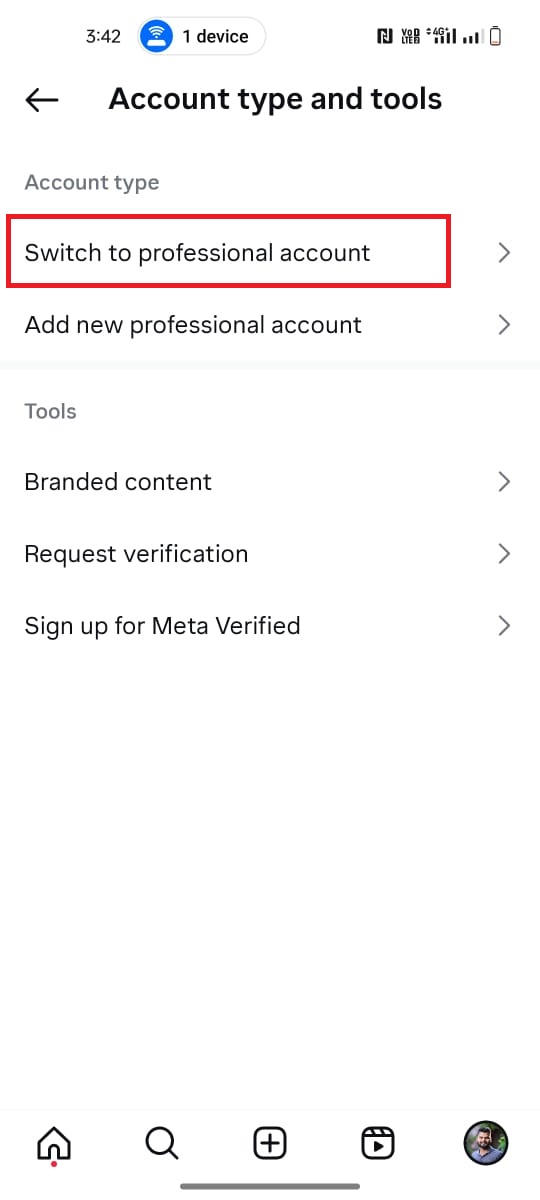
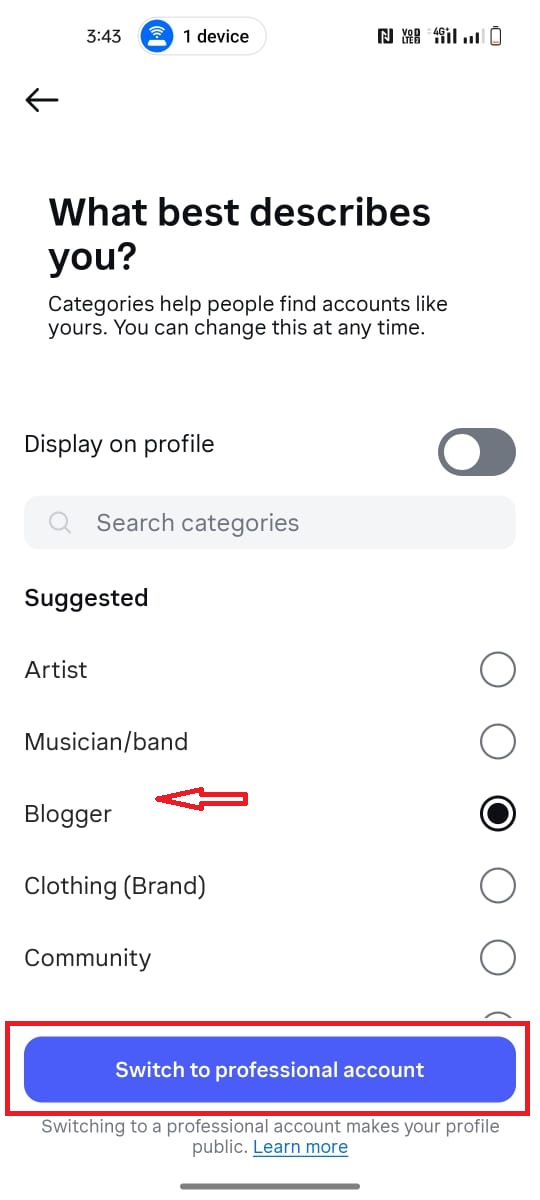
Step #5: Choose the “Category” that defines your profession in the most accurate way and select “Done.”
Step #6: If your account is private, you will be prompted to make your profile public. This is necessary for the change, so click on “OK.”
Step #7: Choose “Creator/Business” and tap “Next”>“Next.”
Step #8: Next, add your contact details in the designated space and tap “Next.” If you don’t want to add a contact, tap “Don’t use my contact info.”
Step #9: The next step asks you to “Log in to Facebook.” Add a Facebook business account if you have one. If not, select “Skip.”
Step #10: You’re shown a few more optional questions next. You may answer those. If you’re not interested, click on “X” to skip. You’ll return to your profile page.
Thus, your account should now be changed from a Personal Account to a Business or Creator Account.
Also Read: How to Share Someone Else’s Instagram Post on your own Instagram Feed (or Elsewhere!)
How To Use Instagram Insights:
Once your account has been changed from Personal to Business or Creator Account, a new feature will be added. This feature is called Instagram Insights. Insights will help you discover your account’s data logistics and analytics.
The “Insights” feature shows several useful metrics of your account, such as the number of shares, accounts reached, accounts engaged/content interactions, profile visits, and follows.
Here is how to use Instagram Insights feature ON PHONE for PHOTOS and REELS posts :
These steps are applicable only when used on a mobile phone. The same steps are to be followed for Android and iOS devices.
Photo Posts Insights:
Step #1: Go to your profile. Click on any of your photo posts on your profile.
Step #2: Look for a “View insights” link under the posts on the left. Go to “View insights,” and you will find all the metrics, including shares, under a paper airplane icon.

Reels Post Insights:
Step #1: On your profile, go to the “Reels” tab – it’s right on top of the grid of your posts.
Step #2: Open any reel post of your choice.
Step #3: Tap on the vertical-three-dot icon on the bottom right. A menu swipes up from below.
Step #4: Go to “View insights” from the menu and you will find all metrics including number of shares under a paper airplane icon.
How to Fix The “Can’t Share Post to Story Instagram Issue”?
Here is how to use Instagram Insights feature ON PC for PHOTOS and REELS posts :
Step #1: Go to your profile on Instagram.
Step #2: Select the photo you want to check. For a reel, go to the “Reels” tab – it’s one of the icons just above the posts grid. Click on the reel of your choice.
Step #3: The photo/reel maximizes and is displayed on the left side. Comments and other details are shown on the right side. Towards the bottom, locate “View insights” in blue text.
Step #4: Go to “View insights,” and all metrics are shown. Shares are indicated by a paper airplane icon.
How to find out your Story Reshares:
There is another feature that helps you track shares of your story, just like the Insight feature. It is called the — “View Story Reshares.” This feature is usually available when someone shares your photo or reel posts on their public Instagram story and lasts 24 hours from the time of the sharing.
Different users have different experiences with this:
Some users have said that the feature appears on their post every time someone shares it on public stories. Some users say that they never find it, even if people post it publicly. Other users have noticed that this feature does not appear in posts with multiple photos.
As Instagram hasn’t yet publicized the feature, it’s believed that it is still under a Beta Testing. So, it may reappear and disappear for different users from time to time.
Can People See If You View Their Highlights on Instagram?
How To Use This Feature:
Step #1: Go to any photo/reel, and then the vertical-three-dot icon at the top right for photo posts and bottom right for reel posts.
Step #2: Click on “View Story Reshares.” It also shows you all the users who shared your content on public stories.
Other FAQs:
Can My Account Be Changed Back To a Personal Account?
Yes, your account can be changed back from a Business Account or a Creator Account to a Personal Account again. Here’s how tp do it easily, on both Phone as well as on PC:
Follow these steps on your Android or iOS mobile phone devices:
- Launch the app, go to your profile, and tap the three-horizontal-line/hamburger icon on top right.
- Tap “Business/Creator tools and controls” – depending on whether you have a Business/Creator profile – under “For professionals.”
- Go to “Switch account type”> “Switch to personal account” > “Switch to personal account.”
Follow these steps on a desktop or PC:
- Log in to your instagram account on the browser.
- Click on the three-horizontal-line/hamburger icon on the bottom left.
- Depending on whether you have a Business/Creator profile, click on “Business/Creator tools and controls” under “For professionals.”
- Click on “Switch to personal account”>“Switch back.”
Is there Any Third-Party App that Shows me who Shared My Post as a Message?
Since Instagram has strict user privacy guidelines and Privacy Protocols, it does not let you access such information through any other third-party apps.
Even if you find an app that offers this functionality, it is recommended to not use it. Otherwise, your account will violate Instagram’s terms of service. It may even compromise your account security, as these apps might collect sensitive information from your account. Your own privacy might be breached.
Are there any other ways to know if another User Shared My Content?
The only other legitimate way to know whether anyone shared your content is when they mention your username in the description or comment, or they tag your username in their content. Then you as well as others will be able to see your account if they tap on your username.
Can You See Who Saves Your Post On Instagram 2024?
Conclusion:
At this moment, Instagram does not offer any way to find exactly “who” has shared your Instagram posts – other than public story reshares. However, with the help of Instagram Insights and Reshares functions, you can still track the numbers and get a rough metrics on your content popularity, likes and shares as well as the target demographic of your content and analytics related to your followers or non-followers who interact with your account or content in any way.
 About Carson Derrow