Among the billions of Instagram users, over 500+ million users use Instagram stories daily. There might be certain posts, images, carousels, or videos that you might come across from other users (or your own) that you wish to share with your audience via your Instagram story.
However, the moment you try to share that story, it showcases an error, preventing you from sharing that post to your story. Technical issues like these are often quite common, and with the right tricks, you can easily fix the problems.
If you are troubled by the “Can’t Share Post to Story Instagram” issue, this comprehensive guide will walk you through all the relevant details.
Table of Contents
Why Are You Experiencing “Can’t Share Post to Story” on Instagram?
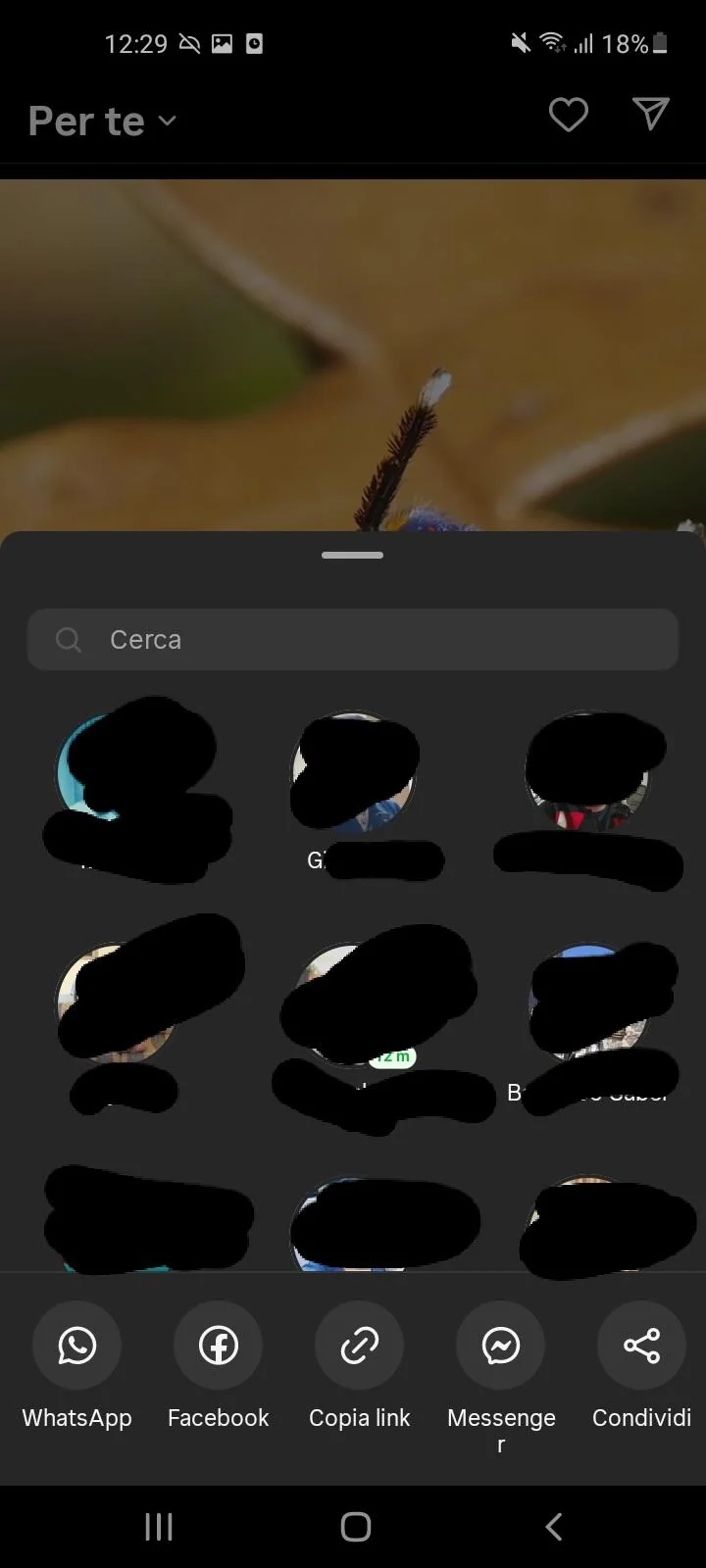
Understanding why this common technical issue is occurring is crucial before we discuss the different ways you can fix it.
There are a myriad of potential reasons why you aren’t able to share certain posts to your Instagram stories, so let us decode them one by one.
1. Private Account
If the post you are trying to share is from a private Instagram account, that’s the first reason you see the “Can’t Share Post to Story” error message. Since their account is private, the posts and stories they share can’t be shared further on other Instagram accounts.
2. Disabled Share Option
Some public Instagram accounts often have their sharing option disabled, primarily when the user disables the “Add post to story” option. This means they don’t want their posts and content to be reshared.
3. Geographic Restrictions
In some cases, regional and geographic restrictions are another reason you see this error message pop up. Also, there are certain times Instagram rolls out certain features that are only available in certain places, which can also prevent you from sharing the post further.
4. Temporary Glitch
Sometimes, the issue with being unable to reshare a post to your Instagram story is a temporary technical glitch. App glitches are common, which could be one reason you are experiencing the issue.
5. Outdated App Version
If you haven’t updated your Instagram app for a long time, that’s another potential reason you could be experiencing errors with some of the features. Software bugs are common when you have an outdated app, so consider updating your Instagram app to the latest version.
6. Slow Internet
A lagging internet connection is another reason you could see the “Can’t share post to Story” error. When you try to share a post with a slow internet connection, it will show the error and ask you to try again later when the internet speed is more stable.
7. Instagram Server Issues
Sometimes, the problem with not sharing a post to your Instagram story is not your doing, but issues with the Instagram servers. Downtimes are common, especially when outages or certain backend issues are happening. So, when the app’s servers are down, it is bound to affect certain features or the app as a whole.
8. Multiple Account Activity
If many people are using your Instagram account at the same time, that’s another reason that could be causing the error to pop up. Mistakes can be made when multiple accounts are saved under the same account center, primarily for safety reasons. So, log out of the accounts from other devices or restart the app entirely to see if the error persists.
Does Rewatching An Instagram Story Move Your Name To The Top?
7 Effective Ways to Fix “Can’t Share Post to Instagram Story” Error
Now that you have a clear understanding of the common reasons why you are experiencing errors when sharing posts to your stories on Instagram, understanding how to fix the issues is the next step.
There are a few different ways you can explore:
1. Update the Instagram App
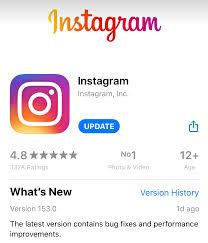
One of the main reasons you are likely experiencing the error is an outdated Instagram app, so the first and possibly the easiest fix is to update the app. This is important if you have not updated the app in a long time.
Here’s what you need to do:
- Open the App or Play Store.
- Search “Instagram” in the search bar and then open the app options.
- Swipe down until you find the update option.
- Tap on “Update” and wait till the download is complete.
Once the update has been downloaded and installed, you can relaunch the Instagram app and see if the error persists.
2. Uninstall and Reinstall the Instagram App

Sometimes, software glitches are one of the main reasons why you may notice an error while sharing posts to your Instagram stories.
So, consider uninstalling and reinstalling the Instagram app to see if that helps fix the error. A misconception is that uninstalling will “delete” all the data from the account, which is not the case at all.
How Many Photos Can You Post On Instagram?
3. Switch to a Public Account
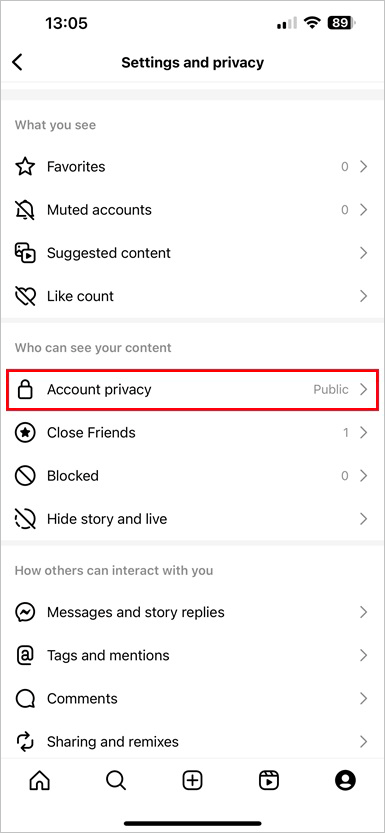
If you are trying to share a post on your Instagram account and your account is private, that’s one possible reason you could be experiencing the error.
Follow the steps to make the account public:
- Open your Instagram app and navigate to the Profile tab.
- Find Settings from the drop-down menu in the stacked line menu in the right corner.
- Under that, you must find and click the “Privacy” tab.
- Go to the Account privacy option, and if the toggle for Private account is enabled, turn it off.
- You must confirm that you want to switch to a public account again.
- Once your account has been changed to Public, go to the post you wish to share to your Instagram story, and you should be able to do that again.
4. Clear the Browser and App Cache
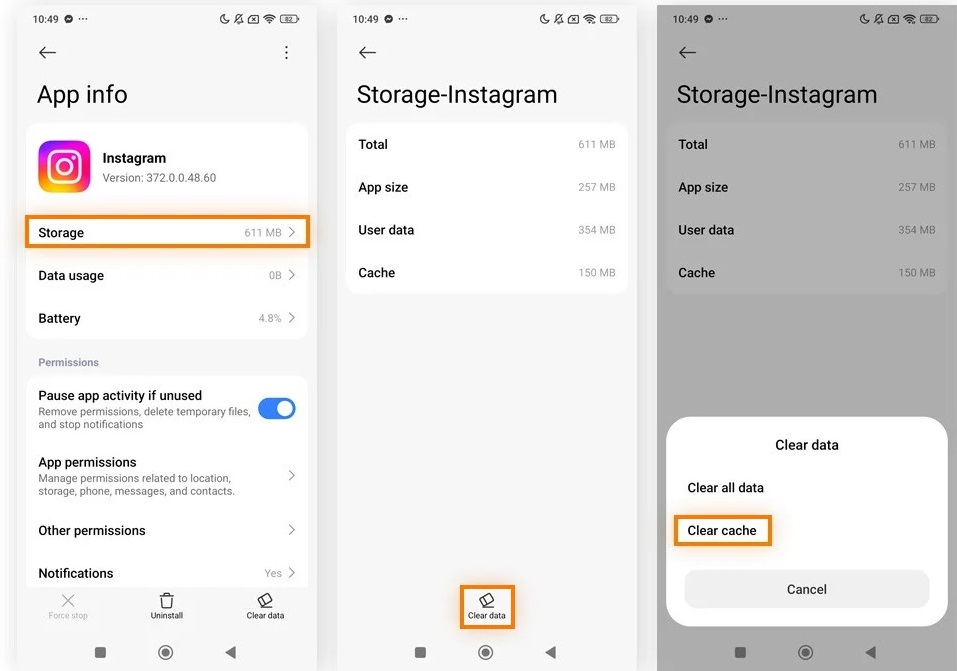
Sometimes, when using the Instagram app, software glitches and bug issues can occur due to the stored caches. So, it is recommended that you clear out the cache every now and then to ensure that the app is functioning normally without any hassle.
Here’s what you need to do to clear the app storage and cache:
- Open Settings on your smartphone or iPhone.
- Go to Apps and App Notifications.
- Tap on Instagram.
- Under that, find Storage or Storage and Cache.
- Tap on Clear Cache.
It will take a few seconds to clear the cache. Once done, you can close the Instagram app and relaunch it. Once done, check if the option to share a post to the story is working.
Can People See If You View Their Highlights on Instagram?
5. Use a Secondary Device
If you have logged into your Instagram account from different devices, consider using a different device to use your Instagram account to share the post to your story.
Sometimes, there could be a software glitch in one device that isn’t the case in the other, explaining why you shouldn’t have to face any problems.
6. Reach Out to The Other Instagram User
If you are trying to share a post from an Instagram user whose account is private, the most unconventional thing you can do is reach out to them personally. You can ask them to change their sharing settings or make their account public so you can share the post easily.
At the end of the day, the possibilities are endless. The user can either choose to ignore your request or change their settings so you can share the post without any issues. In short, you won’t lose out on anything if you simply ask.
7. Contact Instagram Support
If you have tried all these fixes and the error is still there, your last resort is to contact Instagram directly. You can report the error via a complaint to Instagram by following the steps:
- Open your Instagram app and go to your Profile.
- Click on Settings.
- Tap on Help.
- A prompt will pop up saying “Report a Problem”.
- Click on it and type the issue or complaint you have.
- Once you have written the message, tap on Submit.
How to Share Full Reels on Instagram Story?
Final Words
Getting the “Can’t Share Post to Instagram Story” error is much more common than you think. However, if you are tired of the error popping up every time you try to share a post, try one of the many fixes we have mentioned in this guide. If it is someone else’s post that you aren’t sure of due to privacy settings, the most you can do is ask the user to change their profile settings. We hope all these tips help you fix the error and effortlessly share the posts on Instagram stories easily in the future.
 About Carson Derrow