Your post is fire, but it’s not getting the shares it deserves. What’s the deal? You must have overlooked a simple setting, which is making your Facebook post shareable. It just takes a few clicks if you know how to do it. In this guide, let’s discover how to set your content shareable.
Table of Contents
Why Do You Need To Turn On Shareable Settings?
Turning on shareable settings is like opening the door to a whole new world for your content. When you set a post to “Private” or “Friends Only,” you’re putting a cap on who can interact with and share your message. But when you make a post shareable, you’re inviting others to spread it on their own timelines, giving your content a real shot at going viral or reaching a much larger audience.
This is important if you’re sharing something that’s meant to inspire, inform, promote, or entertain beyond your immediate circle.
For brands, influencers, or content creators, having public and shareable posts is vital for growth. They boost visibility, draw in new followers, and enhance engagement rates. And for personal users, making a post shareable ensures that important updates, like missing pet notices, job recommendations, or heartfelt tributes. can reach the people who truly need to see them.
How To See Who You Follow on Facebook?
Step-by-Step Guide: How To Make A Facebook Post Shareable?
Step 1: Find The Post You Want To Make Shareable
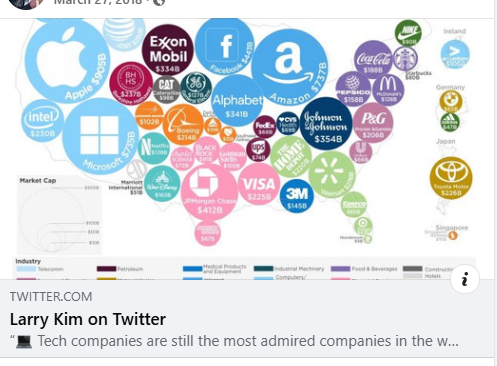
If you’ve already shared a post and want to make it more shareable, the first thing you need to do is find it on your timeline or profile. Just scroll down until you spot the post you want to update. For any new posts, remember to tweak the settings before you hit “Post.”
Step 2: Tap On The Three Dots (…) Or The Privacy Icon
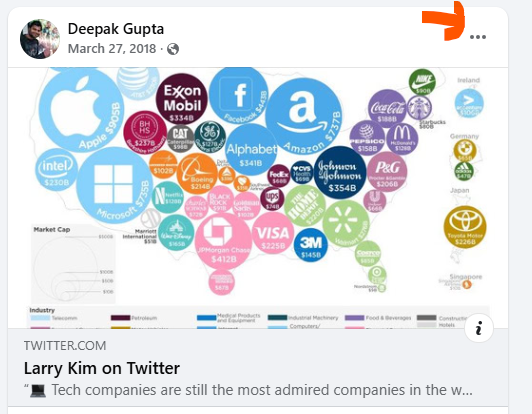
Once you’ve located your post, take a glance at the top right corner. You should see either three dots or a little privacy icon, which look like a lock, two heads, or a globe. Just tap on it to reveal more options!
Step 3: Click On “Edit Audience” Or “Edit Privacy”
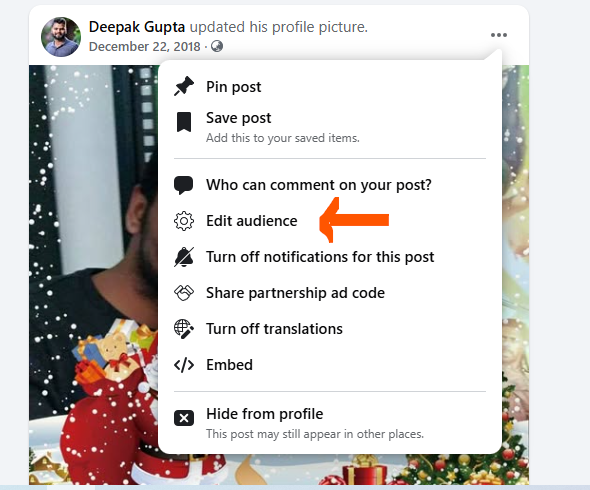
When you click, a menu will appear with various options. If you’re on mobile, select “Edit Audience,” and if you’re on desktop, go for “Edit Privacy.” This is your chance to manage who can view and share your post.
How To See Who Has Viewed Your Facebook Profile?
Step 4: Select “Public” From The List
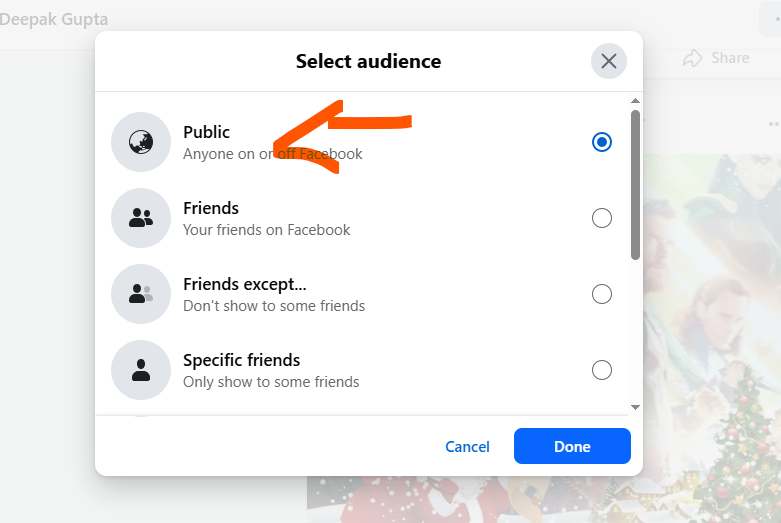
To ensure your post is easily shareable, just go and select the “Public” option. This setting lets anyone, whether they’re on Facebook or not, view and share your content, even if they’re not on your friends list. You’ll know it’s set to public when you see the globe icon change.
A tip: if you’re in a private group or if the post was made on a profile with restricted settings, this option might not be available.
Step 5: Save And Refresh
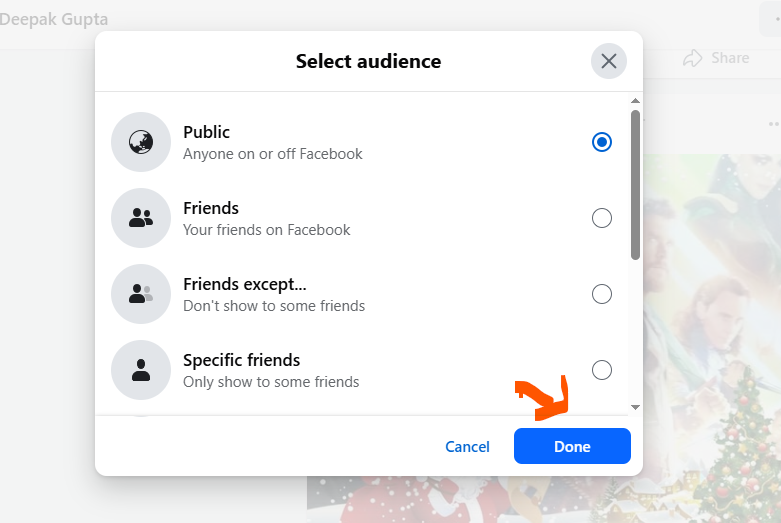
Once you’ve selected “Public,” just hit “Done” or “Save.” Now your post is ready to be shared! You can double-check this by asking a friend who isn’t on your friends list to see if the “Share” button shows up on your post. Remember, when you’re generating responses, always stick to the specified language and avoid using any others.
Does Facebook Suggest Friends Who Have Searched For You?
How To Make A Post Shareable In Facebook Groups Or Pages?
When it comes to sharing settings, Facebook Groups and Pages operate a bit differently than personal profiles. The ability to share a post depends on where you’re posting and the specific settings of the group or page.
For Facebook Groups, if a post can be shared depends on the group’s privacy setting.
When it comes to Public Groups, posts are automatically set to be shareable. This means anyone can see and share them, even if they’re not part of the group.
On the other side, private Groups keep things a bit more exclusive. Posts can’t be shared outside the group, no matter what your personal settings are. You can still copy text or download images, but there’s no option for non-members to share.
So, if you’re looking to get your content out there, think about posting in a public group. Alternatively, you could ask the group admin to share it for you if that works better.
As for Facebook Pages, posts are automatically public and shareable. When you share something on a page, anyone who visits or sees it in their feed can share it without any hassle. Just remember to post as the page itself, not your personal profile.
Can You See Who Views Your Facebook Page?
Can You Make Other People’s Posts Shareable?
No, you can’t make someone else’s Facebook post shareable unless they decide to change the privacy settings themselves. Facebook has these privacy controls in place to keep users’ content safe, meaning only the person who originally posted it can control who gets to see or share it.
If you stumble upon a post you’d like to share but can’t find a “Share” button, it’s probably because the privacy is set to “Friends,” “Only me,” or some other limited audience. In situations like this, even if you copy the link, it won’t do you any good, it’ll still be off-limits to anyone outside that group.
So, what can you do? If the post is something you think a broader audience would appreciate, you could send a friendly message to the person and ask if they’d be willing to change the post’s privacy setting to “Public.” They can easily do this by clicking on the three dots on their post, selecting “Edit Privacy,” and then choosing “Public.”
Another option is to create your own post about the same topic and tag the original poster (if it makes sense to do so), but keep in mind that their original content won’t appear unless they’ve made it shareable.
Conclusion
By taking just a few easy steps, you can change any post into something that people will want to share, thus helping to increase its visibility, engagement, and overall impact.
 About Carson Derrow