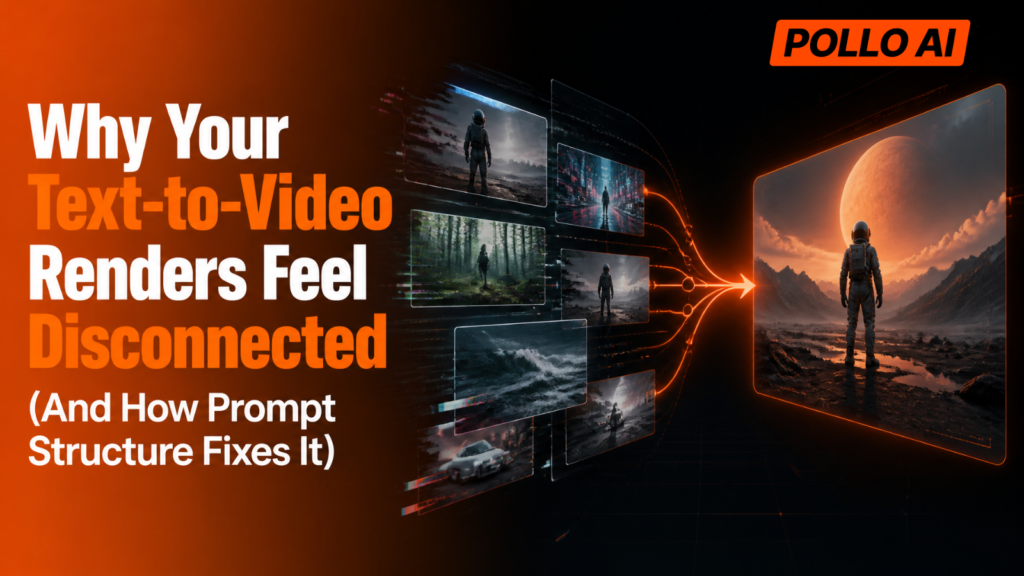
You write five good prompts, render five good clips, and the video still feels wrong: the character changes jackets, the light shifts from warm to cold and each scene seems to come from a different film. This is the disconnected-render problem, and it is often caused by the prompts rather than the clips. This guide explains why it happens and how a simple prompt structure keeps scenes connected.
Table of Contents
Why Do Text-to-Video Renders Feel Disconnected?
Renders feel disconnected because each prompt is a fresh start, so the model reinvents the character, the setting and the look every time. If you use text to video AI to turn prompts into a sequence that holds together, check the four things that drift most:
- Character. Face, hair and outfit change between clips.
- Setting and props. A room, a street or an object looks different each time.
- Light and colour. The mood shifts from warm to cold without a reason.
- Style and camera. One clip looks illustrated and the next looks cinematic.
A model only knows what the current prompt tells it, so anything you leave out is free to change.
How Does a Two-Block Prompt Keep Scenes Connected?
Split every prompt into a shared block that stays the same and a shot block that changes for each scene.
| Block | What goes in | Example |
| Shared block | Character, setting, light, palette and style | “Maya, a courier with short black hair and a yellow raincoat, rainy neon city at night, cool blue and magenta light, cinematic anime style” |
| Shot block | One action and one camera move | “She checks a parcel under an awning, slow push-in” |
The workflow is simple:
- Write the shared block once. Keep it to one or two lines.
- Write one shot block per scene. Give each scene one clear action and one camera move.
- Paste the shared block at the start of every prompt. Keep the wording exactly the same.
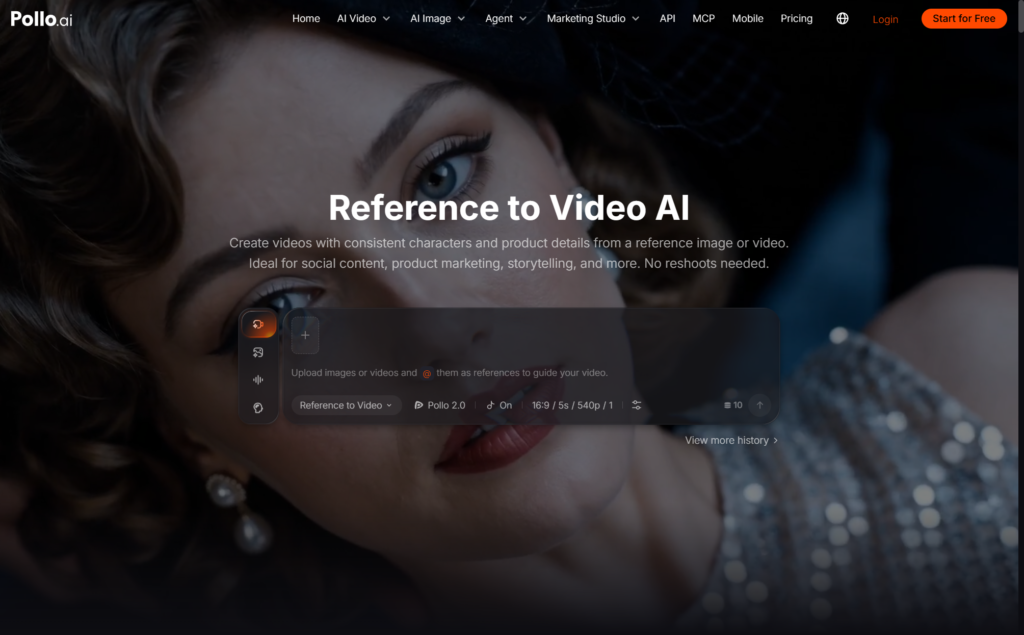
- Add a visual reference. Upload a reference image or a short reference video to help preserve the character’s face, clothing and other defining details across clips. A reference to video workflow is useful when the same subject needs to appear in new actions or locations.
- Use one model for the whole sequence. Switching models between clips can change the visual style, motion and level of detail.
How Do You Bridge One Shot to the Next?
Make the end of one shot match the start of the next in pose, direction, light or an object.
- Match the pose. End shot 1 on the pose that shot 2 begins with.
- Keep the screen direction. If the character moves left to right, keep that direction in the next shot.
- Repeat an object or colour. The yellow raincoat or a neon sign appears in every shot.
- Vary the shot size. Alternate wide, medium and close shots, so the cuts feel intentional.
- Join with sound. Rain or music running across the cuts hides small visual gaps.
What Does a Connected Three-Shot Sequence Look Like?
Keep the shared block identical and change only the action and the camera. Start every prompt with this shared block: “Maya, a courier with short black hair and a yellow raincoat, rainy neon city at night, cool blue and magenta light, cinematic anime style.”
- Shot 1, wide: “Maya runs across a wet street toward a glowing shop, wide tracking shot.”
- Shot 2, medium: “She ducks under an awning and checks a parcel, medium shot, slow push-in.”
- Shot 3, close: “She smiles as she reads the address, close-up, shallow depth of field.”
The sequence stays connected because the movement keeps its direction, the shot size steps from wide to close and the yellow raincoat appears in all three.
How Do You Test Without Wasting Credits?
Render one clip with the shared block first, fix it, then render the rest. The free plan on Pollo AI includes 20 one-time credits, about four 5-second clips at 720p, so a three-shot sequence fits with one clip to spare. Free clips carry a watermark.
What Mistakes Make a Sequence Drift?
Most drift comes from changing something you meant to keep.
- Rewriting the character description in every prompt. Paste the shared block instead.
- Switching models or aspect ratios mid-sequence. Pick one of each and keep it.
- Putting three characters in one clip. Start with one, then add a second.
- Using vague style words. “Cool” or “epic” says little. Name the light and the style.
Ready to Connect Your Next Three Clips?
Write one shared block and three shot blocks. Generate the first clip on Pollo AI, check that the character and light match your plan, then render the other two.