Sharing a YouTube video on your Instagram isn’t that far-fetched of a concept. With the consistent shifts in social media and marketing, having an omnichannel presence is currently the need of the hour, whether you are a content creator or a business.
Even if you are a standard social media enthusiast who wants to share a YouTube video on your Instagram, you have come to the right place.
Since YouTube and Instagram are two separate ecosystems, the sharing process can be a bit tricky. However, with the right methods and tools, you can share a YouTube video directly on Instagram without much hassle.
Let’s crack the code!
Table of Contents
Why Would You Want to Share YouTube Videos on Instagram?
Image Credit: SocialMediaNotes
Many people ask, “Why would I share a YouTube video on my Instagram account?”
Well, the answer to that isn’t as straightforward as you think. The answer to this depends on your objective.
For example, if you are a normal social media user, you might find a YouTube video valuable and want to share it on your Instagram so your friends can see it too. However, if you are a content creator, you might want to cross-promote your content across all the socials, hence the sharing.
That said, the following are a few common reasons why most people want to share a YouTube video on Instagram:
- To expand their reach
- Promote new content
- Boost engagement
- Cross-platform growth
Regardless of the reasoning, knowing the steps and different ways to share a YouTube video on Instagram can be handy from time to time.
Different Ways to Share YouTube Videos on Instagram
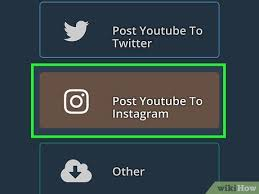
To be fair, there are not one but three different ways to share a YouTube video on Instagram. They are:
- Download and Upload (Manually)
- Share Link in Bio or Stories
- Use Third-Party Apps/Tools
Each of these steps involves a different set of steps, which you need to follow to share the video successfully without compromising.
How Does Instagram Sort Story Viewers?
Method 1: Download and Upload the YouTube Video to Instagram
The first method is the most commonly done process, which doesn’t always require third-party tools or complicated interventions. Now, remember that not every YouTube video has a download option, which means that if you wish to download some videos, you might have to use a YouTube video downloader.
Here’s what you need to do:
- Open YouTube and find the video you wish to download to share on your Instagram.
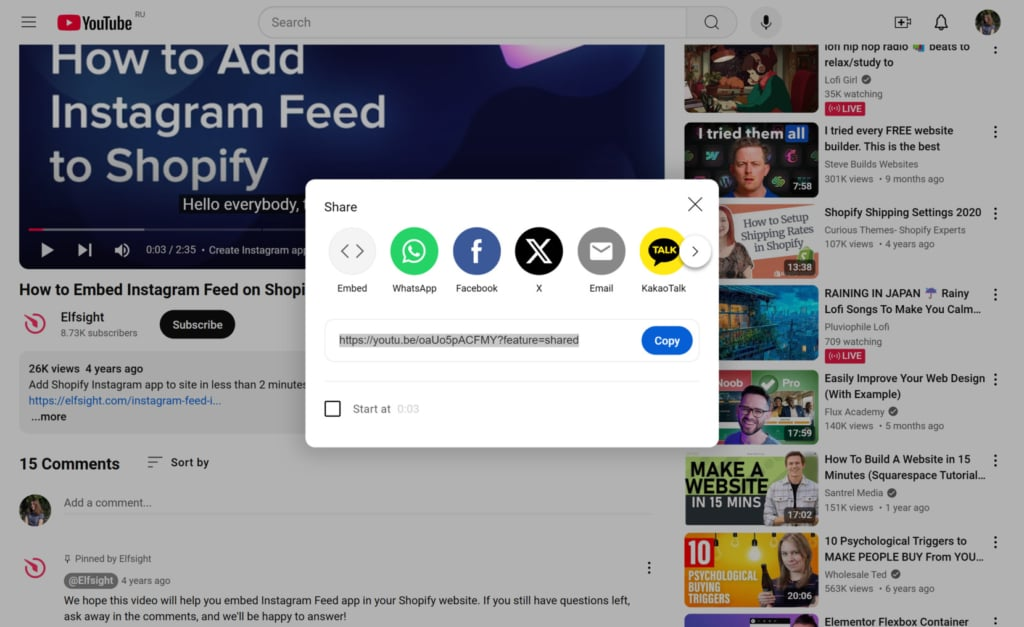
- Once you find the video, tap on the Share button and “Copy Link”.
- After that, you’d need to download the video from the link you copied.
- Some third-party YouTube video downloading websites are Y2mate, savefrom.net, 4K video downloader, etc. You paste the copied link into one of these sites and then download the YouTube video in MP4 format.
- Once the video is downloaded, you can edit, trim, or cut it (if needed). This is primarily because Instagram has time limits, like 1 minute for feed videos, 15 seconds for Stories, 90 seconds for Reels, etc.
- Following the edit and formatting, the last step is finally uploading the YouTube video to your Instagram. To do this, open Instagram, tap “+,” and create a post or reel. Upload the video and share it with your audience.
Method 2: Share YouTube Video Link via Stories or Bio
The above-mentioned method of sharing a YouTube video on Instagram involves many steps, which might not be everyone’s cup of tea.
So, if you want to opt for the “shortcut” method, this is one of the steps you can consider checking out. You can either share the YouTube video link on your Stories or in the bio.
Add Link in Instagram Story:
- Open Instagram and tap Your Story.
- Add a background image or video.
- Tap the Sticker icon.
- Select the Link sticker.
- Paste the YouTube video link.
- Add a call-to-action like “Watch Now” or “Click Here”.
Add Link in Bio
- Use tools like Linktree, Beacons, or Lnk.Bio to create a page with multiple links.
- Update your bio with “New Video – Link in Bio” as a caption on your post or story.
Also, if you don’t have multiple links to share in your bio, you can directly edit your link from the profile editing options.
Method 3: Use Third-Party Apps and Tools
Another method for successfully sharing YouTube videos on Instagram is to use certain third-party apps and tools, such as Canva, Kapwing, Snaptik, etc.
These apps’ main purpose is to reformat your downloaded YouTube videos so they can be easily uploaded to Instagram.
How to Share Full Reels on Instagram Story?
How to Reformat Your YouTube Videos to Share on Instagram?
If you want to keep your Instagram layout looking prim and proper, you must upload a well-formatted video.
Different video types on Instagram require specific formats, and the following are a few other ways to format these videos:
1. For Instagram Feed:
- Length: Max 1 minute
- Aspect Ratio: 1:1 or 4:5
- Add a compelling caption and hashtags
2. For Instagram Stories:
- Length: 15 seconds per segment
- Aspect Ratio: 9:16
- Use Instagram’s built-in tools for stickers, polls, or swipe-up links (if eligible)
3. For Instagram Reels:
- Length: Up to 90 seconds
- Ratio: 9:16
- Best for short, engaging clips with music and effects
The best way to reformat your YouTube videos (especially the long format ones with an aspect ratio of 16:9 is by using editing tools like InShot, Canva, CapCut, etc.
How to Create Better Engagement on Instagram with YouTube Videos?
If your purpose of sharing YouTube videos on Instagram is to boost engagement, there are several tips you can follow to ensure better engagement and following:
- One of the best ways to boost engagement is by adding subtitles. Since many people tend to watch videos without sound, subtitles simplify that process for many people.
- Another effective way to boost engagement (especially on YouTube) is by adding attractive thumbnails.
- While hashtags aren’t the most engaging element, they serve a purpose. So, ensure that you are using them wisely.
- Check your account’s analytics to find out when most of your followers stay active. This is when you must consider posting your content.
- If you want to redirect your audience to a website or perform a specific action, you must include a relevant CTA at the end of the video.
These tips should help you plan things better, ensure peak engagement in your content, and drive growth like never before.
How to Make a Poll on YouTube?
Final Words
Though YouTube and Instagram operate on different models — long-form vs short-form — they can complement each other perfectly if used strategically. Sharing YouTube videos on Instagram helps you increase your audience reach, boost engagement, and guide traffic from one platform to the other. So, if you have been working towards creating an omnichannel presence, these tips should make sharing YouTube videos on Instagram a walk in the park.
 About Carson Derrow