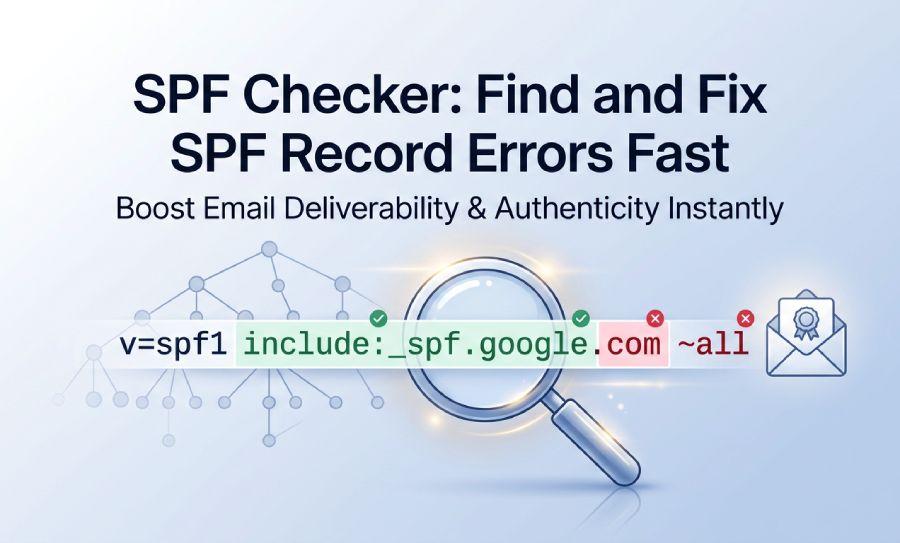
Problems with email authentication can swiftly transform genuine messages into spam or result in delivery failures. Using an SPF checker can help detect frequent issues with SPF records, such as syntax mistakes, duplicate DNS entries, too many lookups, and unapproved senders. Regularly reviewing your SPF settings allows for quicker error resolution, enhances email delivery success, and bolsters defenses against spoofing and phishing attacks.
Table of Contents
What an SPF Checker Is and Why SPF Records Matter
An SPF checker tool is a diagnostic tool that performs an SPF lookup against a domain name, reads the published TXT record in DNS, and evaluates whether the SPF record is valid, complete, and aligned with the domain’s real sending sources. In practice, an SPF record checker helps confirm whether SPF exists, whether the syntax is correct, and whether Mailbox Providers such as Google, Microsoft, Outlook, and Verizon can trust messages sent on behalf of your domain.
How the sender policy framework works
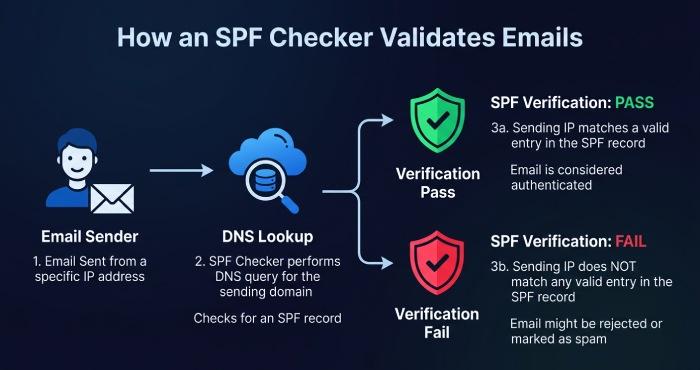
The sender policy framework is an email authentication protocol that lets a domain owner define authorized senders by publishing an SPF record in DNS. When a receiving mail server gets a message, it checks the visible sending domain, performs a DNS lookup, and compares the connecting IP address against the authorized IP addresses listed in the SPF record.
For a technical foundation, the Sender Policy Framework specification explains how SPF helps reduce email spoofing, email spam, and phishing attacks. SPF is not a standalone email security solution, but it is a core part of modern email authentication alongside DKIM, DomainKeys Identified Mail, and DMARC.
Why email authentication depends on clean SPF data
A clean SPF record improves email deliverability because Mailbox Providers can verify that your marketing platform, help desk, CRM, or corporate mail server is approved to send mail. If SPF passes, the message is more likely to be trusted. If SPF fails, the message may be quarantined, rejected, or treated as Spam depending on the recipient’s filtering rules and your DMARC policy.
An SPF checker, SPF validator, or SPF diagnostic tool is especially useful when organizations use multiple platforms, such as Google Workspace, Microsoft 365, Salesforce, Zendesk, or an external newsletter tool. A quick SPF record check can reveal whether all sending sources are authorized before email authentication failures damage your sender reputation.
Common SPF Record Errors That Hurt Email Deliverability
Multiple SPF records and invalid TXT records
One of the most common errors is publishing more than one SPF record for the same domain name. SPF requires a single TXT record beginning with v=SPF1. If your DNS settings contain two separate SPF TXT records, receivers may return a permanent error, and SPF validation may fail.
Duplicate TXT record problems
For example, one TXT record may authorize Google with _spf.google.com, while another authorizes Microsoft with spf.protection.outlook.com. Instead of publishing two records, they must be merged into a single SPF record. A typical SPF record example might look like:
Tools such as the MXToolbox SPF checker make it easy to run an SPF record check and detect duplicate records, missing mechanisms, and DNS lookup problems.
SPF syntax, mechanism, and policy mistakes
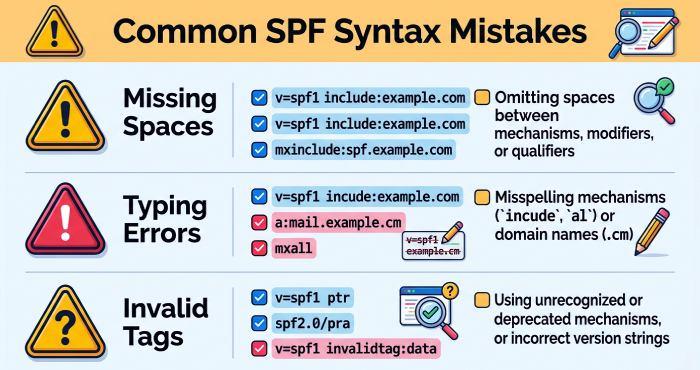
Bad SPF syntax can break authentication even when the intended sending sources are legitimate. Common mistakes include missing spaces, unsupported characters, incorrect CIDR notation for an IP address, or an invalid all tag at the end of the record.
Key SPF tags and mechanisms include the include tag, all tag, mx tag, a record tag, ptr tag, exists tag, and redirect mechanism. Each has a specific role, and SPF tag definitions matter because a small formatting issue can change the result of an SPF validation.
Risky mechanisms and excessive DNS lookups
The ptr tag is discouraged because it is slow, unreliable, and can create unpredictable DNS lookup behavior. SPF also has a 10-DNS-lookup limit, so a large SPF tree with too many include mechanisms can cause SPF fails even when the domain owner intended authorization. RFC 7208 describes SPF’s limitations, including lookup processing and evaluation rules.
How to Use an SPF Checker to Diagnose Problems Quickly
Run an SPF lookup for the root domain and subdomains
Start by entering the domain name into an SPF lookup tool. You can use a browser-based tool such as the EasyDMARC SPF lookup or run a Command Line test from Terminal with nslookup or dig. For example:
dig TXT example.com
or:
nslookup -type=TXT example.com
This SPF lookup shows the published TXT records for the domain. If no SPF TXT record appears, the report may indicate that no SPF exists. If multiple records appear, your SPF record check should flag an SPF compliance issue.
Interpret SPF check results and validation messages
The best SPF validator will provide SPF check results in plain language. Look for messages about invalid syntax, too many DNS lookups, missing authorized senders, risky mechanisms, and excessive includes. An SPF diagnostic tool may also show the expanded SPF tree, helping you identify which include tag or third-party provider is consuming lookups.
Confirm whether SPF exists before changing DNS
Before editing DNS, confirm which DNS hosting provider controls the live zone. Your domain registrar may not be the same company that hosts DNS. Check the authoritative DNS provider, review existing TXT records, and document current email authentication settings, including any DKIM record and DMARC record.
Step-by-Step Fixes for SPF Syntax, Lookup, and Authorization Issues
Fix SPF syntax and record formatting
First, ensure your SPF record starts with v=SPF1 and ends with an all tag such as -all, ~all, or ?all. For stricter enforcement, many mature domains use -all, but a softer ~all may be appropriate during early SPF implementation or migration.
Use an SPF validator such as the Kitterman SPF validation tool to verify SPF syntax before publishing changes. Then run another SPF test after DNS propagation to confirm the SPF record check returns a valid result.
Resolve DNS lookup limits and flatten bloated records
If your SPF record exceeds the 10-lookup limit, reduce unnecessary include mechanisms, remove obsolete vendors, or replace broad includes with specific IP address ranges when your provider supports it. Be careful with manual SPF flattening because cloud providers can change IP ranges. For example, Google documents SPF setup for Google, while Microsoft provides guidance for Microsoft 365 domains.
A strong SPF risk assessment should compare current sending sources against the expanded SPF tree. If you see old platforms, unused bulk mail vendors, or abandoned services, remove them to improve SPF compliance and reduce the chance of email spoofing.
Authorize legitimate sending sources
Make a complete inventory of sending sources before changing the record. Include corporate email, marketing automation, transactional email, support systems, invoicing tools, and any application that sends mail using your domain. Then map each source to the correct SPF mechanism.
For Microsoft 365, that may mean including spf.protection.outlook.com. For Google Workspace, it may mean including _spf.google.com. If your organization uses EasyDMARC, easydmarc.us, MXToolbox, or another SPF diagnostic tool for SPF monitoring and SPF reporting, compare tool results after every update. A final SPF test should confirm that authorized senders pass and unauthorized senders fail.
Best Practices for Maintaining a Healthy SPF Record
Monitor SPF alongside DKIM and DMARC
SPF works best when paired with DKIM and DMARC. DKIM signs messages with a cryptographic signature, while DMARC tells receivers how to handle messages that fail authentication and alignment. Your DMARC policy can be set to monitoring, quarantine, or reject, but SPF and DKIM must be healthy before strict enforcement.
Use recurring SPF monitoring to detect unauthorized changes, stale vendors, and new SPF validation errors. A scheduled SPF lookup, periodic SPF record lookup, and monthly SPF record check can prevent silent failures. For teams that prefer guided review, a tool like the Mimecast SPF record check can help validate records as part of a broader email security workflow.
Keep records simple, documented, and vendor-aware
Maintain a short internal document listing every sending source, the business owner, the required SPF mechanism, and the date it was approved. This makes future SPF implementation easier and reduces the risk of accidentally removing a critical mail stream.
Before adding a new vendor, ask whether they require SPF, DKIM, or both. Some vendors authenticate better with a DKIM record than with another SPF include. Also review whether the vendor supports custom return-path alignment for DMARC. A reliable SPF checker, SPF validator, and SPF diagnostic tool should be part of every onboarding and offboarding process.
Finally, run an SPF test after any DNS change. A fast SPF record check confirms whether the updated SPF record is published correctly, whether the SPF lookup resolves as expected, and whether your sender policy framework configuration continues to protect the domain from Phishing, Spam, and unauthorized use.